




How to Use Emergency Bypass for a Specific Contact on Your iPhone
In today’s fast-paced world, staying connected with important people is essential. But sometimes, you want to minimize distractions by using Do Not Disturb or Focus modes on your iPhone while ensuring key contacts can reach you in urgent situations. That’s where Emergency Bypass comes in.
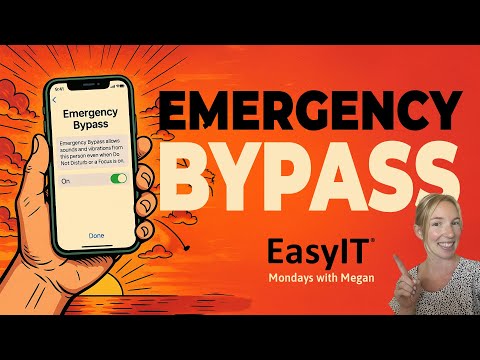
Emergency Bypass is a powerful iPhone feature that allows calls and text messages from specific contacts to bypass Do Not Disturb, silent mode, and Focus settings. This means you won’t miss critical alerts from family members, close friends, or anyone you designate, even when your phone is silenced.
In this post, we’ll walk you through exactly how to enable Emergency Bypass for a contact on your iPhone, so you can stay reachable without compromising your peace and quiet.
What is Emergency Bypass?
Emergency Bypass is a setting available on iPhones running iOS 10 and later. When enabled for a contact, it overrides your device’s silent and Do Not Disturb modes for calls and text messages. This ensures that alerts from that contact always come through with sound and vibration.
Use Emergency Bypass when you want to:
- Receive calls and texts from specific contacts no matter what.
- Avoid missing urgent communications during meetings, sleep, or downtime.
- Customize which contacts can reach you during Focus modes.
How to Enable Emergency Bypass for a Contact
Follow these simple steps to set up Emergency Bypass on your iPhone:
1. Open the Contacts App
Launch the Contacts app or open the Phone app and navigate to the contact you want to prioritize.
2. Edit the Contact
Tap the contact’s name to open their details, then tap Edit in the upper-right corner.
3. Enable Emergency Bypass for Calls
- Scroll down and tap Ringtone.
- At the top of the Ringtone screen, toggle Emergency Bypass to On.
- This allows calls from this contact to ring even if your phone is silent or Do Not Disturb.
4. Enable Emergency Bypass for Text Messages
- Go back to the contact’s Edit screen.
- Tap Text Tone.
- Toggle Emergency Bypass to On here as well.
- This ensures text message alerts from this contact also bypass silencing.
5. Save Your Changes
Tap Done to save your settings and exit.
When to Use Emergency Bypass
Emergency Bypass is perfect for:
- Family members, like parents or children.
- Close friends you want to hear from anytime.
- Work contacts who may need to reach you urgently.
- Medical or emergency contacts.
Be mindful about enabling this feature only for contacts needing priority access, so you don’t get overwhelmed with notifications.
How to Disable Emergency Bypass
If you want to stop calls or texts from bypassing your silent or Do Not Disturb modes:
- Return to the contact’s Edit screen.
- Tap Ringtone and Text Tone.
- Toggle Emergency Bypass off in both places.
- Tap Done to save.
Final Thoughts
Emergency Bypass is a simple yet powerful tool to customize your iPhone’s notification behavior. By allowing select contacts to reach you anytime, you can maintain focus and quiet while staying connected to the people who matter most.
Want to see this feature in action? Check out our step-by-step tutorial on the EasyIT YouTube channel for an easy walkthrough.
Need help setting up Emergency Bypass or have other iPhone questions? Contact us at EasyIT—we’re here to make technology work for you!